Chat
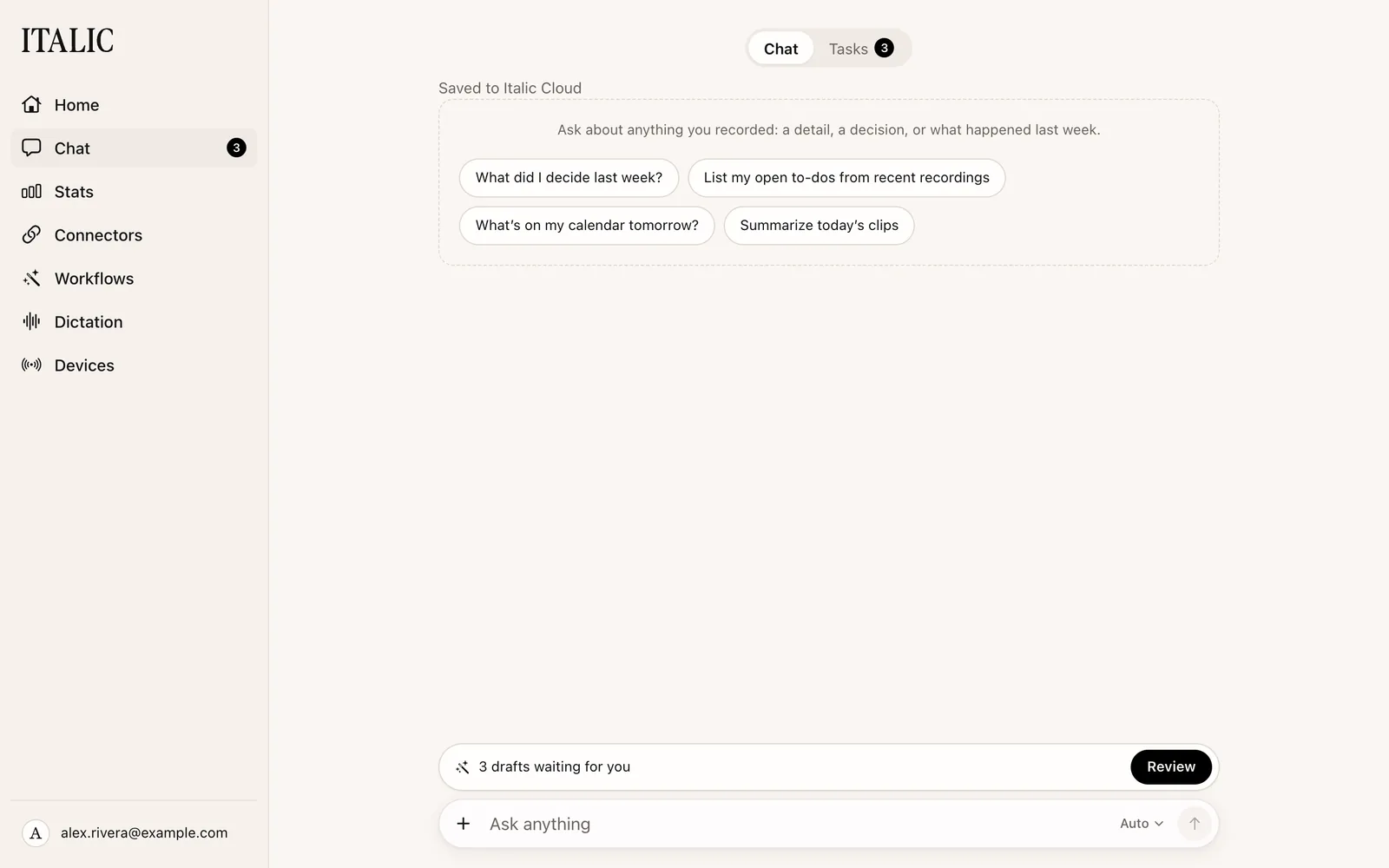
Ask Italic about anything you've recorded, and ask it to draft emails, events and reminders for you to approve.
Chat is one conversation with Italic about everything you've recorded. Ask a question and Italic searches your Clips and Memos, answers, and links the recordings it used. Ask it to do something and it drafts the email, event or reminder for you to approve.
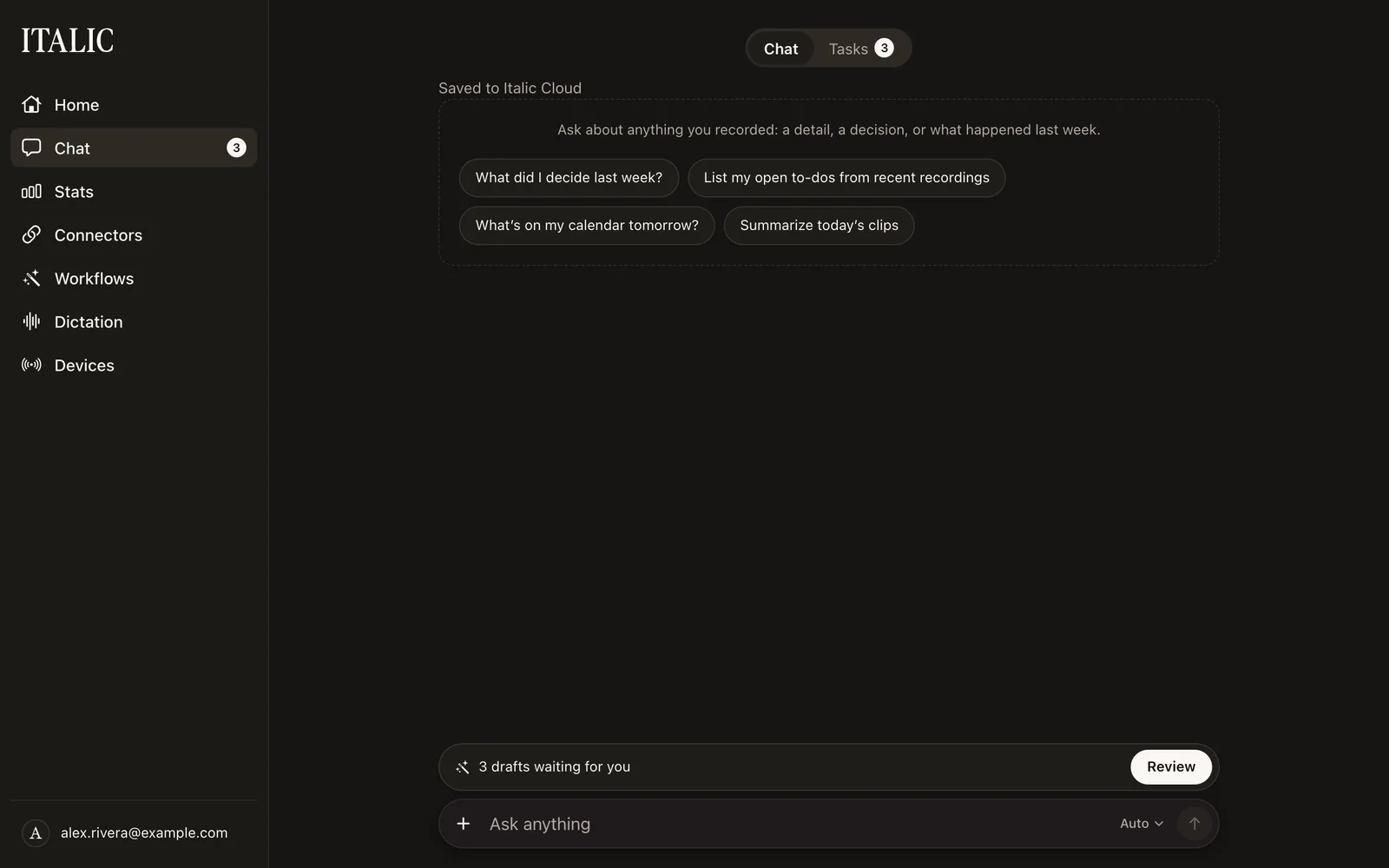
Chat is in the web app (Chat in the sidebar), in Italic for Mac and in the Italic app on iPhone. It's the same conversation, with the same messages, everywhere you're signed in.
Ask about your recordings
Ask the way you'd ask a person:
- "What did I say about pricing last week?"
- "Recap my notes from Tuesday's call."
- "When did I last mention the Lisbon trip?"
To ask about one Clip or Memo, choose Send to Chat from its ⋯ menu in the list (on iPhone, press and hold it). Chat opens with that recording attached, ready for your question.
A reply appears as Italic writes it. Choose Stop to end it where it is: what it has written so far stays in the conversation.
Above each reply, Italic shows what it looked at, such as "Searched “pricing” · 2 matches". Every recording Italic cites is a link: choose it to open the recording.
If you've connected apps in Connectors, Italic can look there too, for example your calendar or your email. Each line shows the logo of the app it checked. When a reply looked at more than one thing, the lines fold into one row, such as "Checked Gmail, Google Calendar and 2 more". Choose the row to see each line.
On the web, Chat opens at the newest message. Choose Show earlier messages to load older ones without losing your place.
Ask with your voice
On the web and in Italic for Mac, the bar at the bottom of Home, Chat, Tasks and every Clip or Memo page is the same bar, in the same place. At rest it's one line: Add for a photo, Ask Italic, and the mic on the right. Press the field and the bar opens to two rows: what you type on top, from two lines up to about five, then Add, the chat model, the mic and the round Send. Left empty, it goes back to one line. Scrolling the page or pressing outside the bar lets go of the field.
Tap the mic, speak, and tap the stop square. Italic transcribes what you said, in your language and with your Vocabulary, and puts the words in the field, so you can read and change them before you send. Nothing is saved as a Clip or Memo. It listens for up to 5 minutes: choose ✕ or press Esc to throw away what you said. The first time, your browser or Mac asks to use the microphone. Speaking counts toward your daily limit like a recording.
While a reply is coming in, Send is Stop.
On Home and Tasks, a question opens Chat and asks it there. Add takes the photo to Chat, where it waits in the message box with what you typed.
On iPhone, your iPhone transcribes what you said with the same speech model as the Record tab, and ✕ takes Add's place to cancel. The mic doesn't listen while you're recording, and only one bar listens at a time. From App 332 to App 341, the iPhone's mic is the round button at the bar's right end, which becomes Send when you type or press the field. App 342 and later have the two-row bar, with the mic beside Send.
Ask about one recording
Every Clip and Memo page has the chat bar at the bottom, in the web app, in Italic for Mac and on iPhone. On the web and Mac it's the same bar as on Home, with Add: a photo you add goes to Chat with the question. Ask there, and "this" means that recording: open a Memo and ask "Turn this into a to-do list", and the answer is about that Memo. Sending takes you to Chat, where Italic answers and you can go on.
In Chat, the question shows under a line naming the recording, such as "Memo · Weekly planning", which opens it. The recording's page shows it too, with Italic's answer: choose Show in chat to go back to it in Chat.
When a workflow ran on a Clip or Memo, the run is the first thing on its page, and its drafts and questions work there as they do in Chat.
A chat that is never wiped
Chat has no clear button, so you can always scroll back to what Italic said and did.
Italic answers the message you just sent. An earlier question that didn't get an answer stays in the chat, and Italic goes back to it only when you ask again.
Memories
Italic keeps Memories: short facts and preferences about you, which every chat reads.
- Say "remember that my sister is Anna" or "remember I like short answers", and Italic saves it.
- With Learn from chats on, Italic also saves lasting things you tell it in a chat, such as who someone is, your projects or how you like things done. Greetings and passing details aren't saved, and neither are passwords, codes or card numbers.
- See, edit and delete them in Personalization → Memories, on the web and the Mac, and in Profile → Personalization → Memories on iPhone. Delete all memories clears the list, and turning off Learn from chats stops the automatic ones. What you ask it to remember is saved either way.
- Italic keeps up to 500 memories.
Chat also reads your whole conversation, not just the last few messages: as much as the model can take word for word, and a summary of what's older.
Ask Italic to act
Ask for an email, an event or a reminder, and Italic drafts it:
- "Email Sam that I'm running late."
- "Add lunch with Dana on Friday at noon."
- "Remind me to call the bank at 9 tomorrow."
Italic doesn't send it yet. It creates a task, a draft for you to approve:
Hi Sam, I'm running about 15 minutes late. See you soon.
Emails and events go through an account you've connected, such as Google or Outlook. Reminders go to Apple Reminders on your iPhone.
The draft appears as a card in the conversation that looks like what it will make: an email shows the account it goes from, who it's to, the subject and the body. Choose Send, Edit or Discard. Once sent, the card becomes one line, such as "Sent “Running late” to sam@example.com". See Tasks for everything a draft can do.
You can keep chatting while a draft waits. To change it, just ask: "Send it to Jeff instead" updates the waiting draft, and you still choose Send.
Italic can also read for you: "What's on my calendar tomorrow?" checks your calendar and answers.
Draft a workflow
Describe a workflow and Italic drafts it as a card too: "Every time I say “remind me”, add a reminder." The card shows the workflow's name, when it runs and its steps. Choose Create to save it, Edit to open it in the builder with everything filled in, or Discard. Nothing is saved until you do, and a workflow you create runs on the recordings you make after that. See Build a workflow.
What needs your approval
Looking things up never needs approval. Anything that sends or creates something waits as a draft until you approve it, unless you've chosen Allow without asking for that app in Connectors. An app set to Off isn't used at all.
Some drafts always wait for you, whatever the setting:
- An email with no recipient yet.
- Moving an email to the Trash.
- A workflow Italic drafts.
Apple Reminders run on your iPhone. In iPhone Chat, an approved reminder is added right away. When you approve one in the web app or on the Mac, Italic wakes your iPhone, which adds it without Italic being opened; a locked iPhone adds it once you unlock it. With App 321 or earlier, the iPhone adds it the next time Italic opens.
If Italic can't take actions for a while, it still answers and says so in the reply, so you know it didn't choose not to act.
Act with Apple Intelligence on iPhone
On an iPhone with Apple Intelligence, Chat can run on the phone. Choose Apple Intelligence from the menu beside Send. Then:
- "Remind me to call the bank at 9 tomorrow" drafts a reminder. Approve it and it's added to Reminders.
- "Add lunch with Sam on Friday at noon" opens Apple's event editor, where you save it.
- An email asks you first before its one request goes to Italic's servers.
Nothing about these drafts leaves your iPhone unless you send an email.
The on-device model can't see or change drafts that are waiting. To change one by asking, choose Auto or a model.
Choose the model
The menu beside Send names who answers, such as Auto. Choose it to pick another.
In the web app and Italic for Mac, the menu lists Auto and the models you've turned on, such as Claude Haiku 5.5, DeepSeek V4.1 Flash 1017, GLM 5.3 Flash and GPT-6 Luna. Auto picks the model for you: usually GPT-6 Luna, with another model answering if it's down. To change which models the menu lists, open Personalization → Chat models. At least one stays on.
On iPhone, the menu lists:
- Auto: Italic picks the model, as in the web app.
- Apple Intelligence: only this iPhone.
- Each model you've turned on, answered by Italic's servers.
Auto and each model are saved to your account, so a model you pick on the web shows on the Mac and iPhone too. Apple Intelligence is the one choice that stays on the iPhone. Workflows have their own model, on the Workflows page. Titles and summaries aren't affected by either choice.