Home
Every Clip and Memo in one list on every device, where you find, edit and share recordings and see what dictating saved you.
Every recording you make, on any device, lands on Home. You don't need to know which device recorded something to find it.
Home
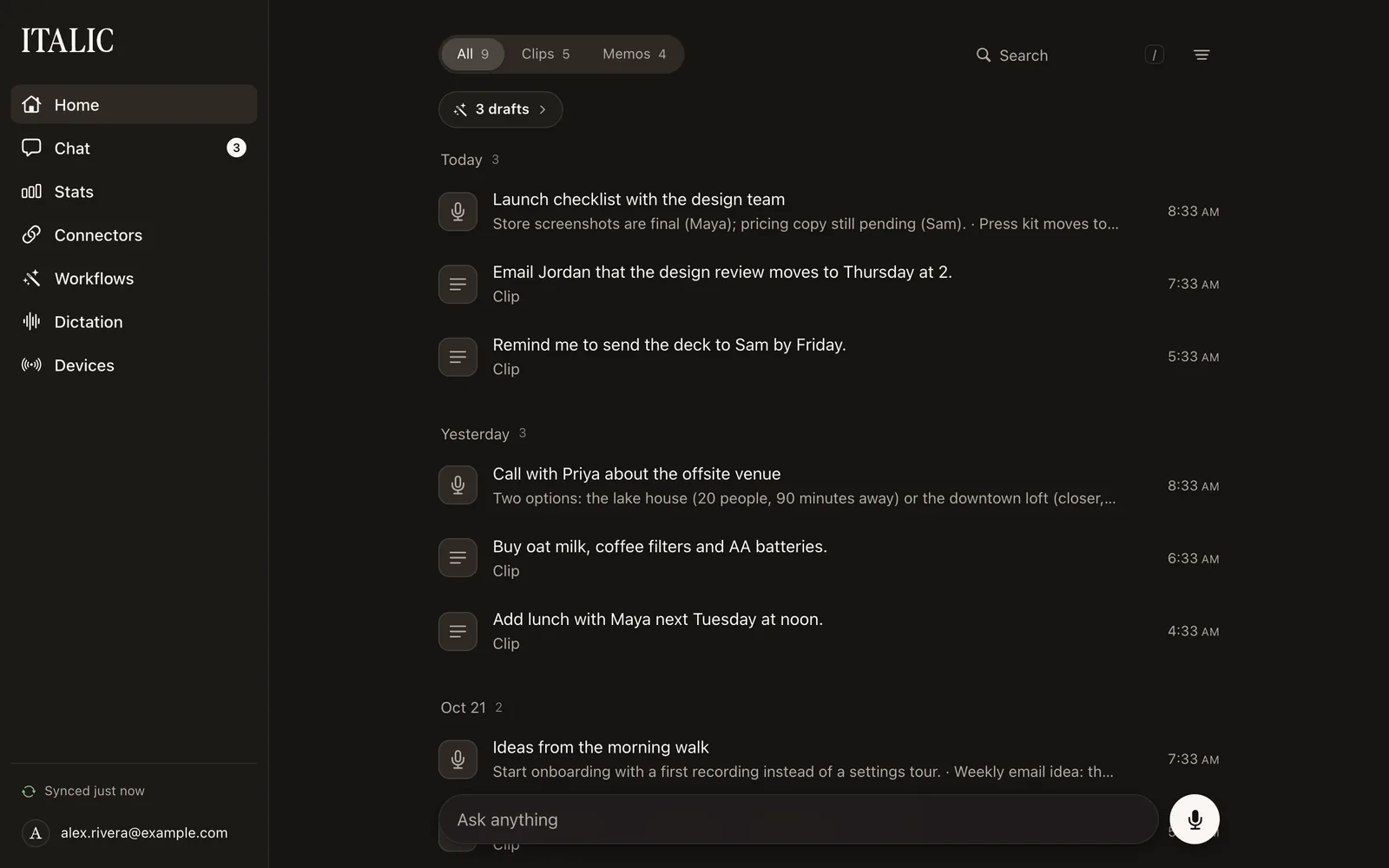
Home lists your recordings by day, newest first. Each row shows whether it's a Clip or a Memo, the device that recorded it and the time. A Clip's row leads with what you said; a Memo's with its title and the start of its summary. If a workflow ran on a recording, its row says which, and a failed one comes first.
Use the filter to show All, Clips or Memos, and to narrow by date (Today, Past 7 days, Past 30 days) or by device. To find words you said, see Search.
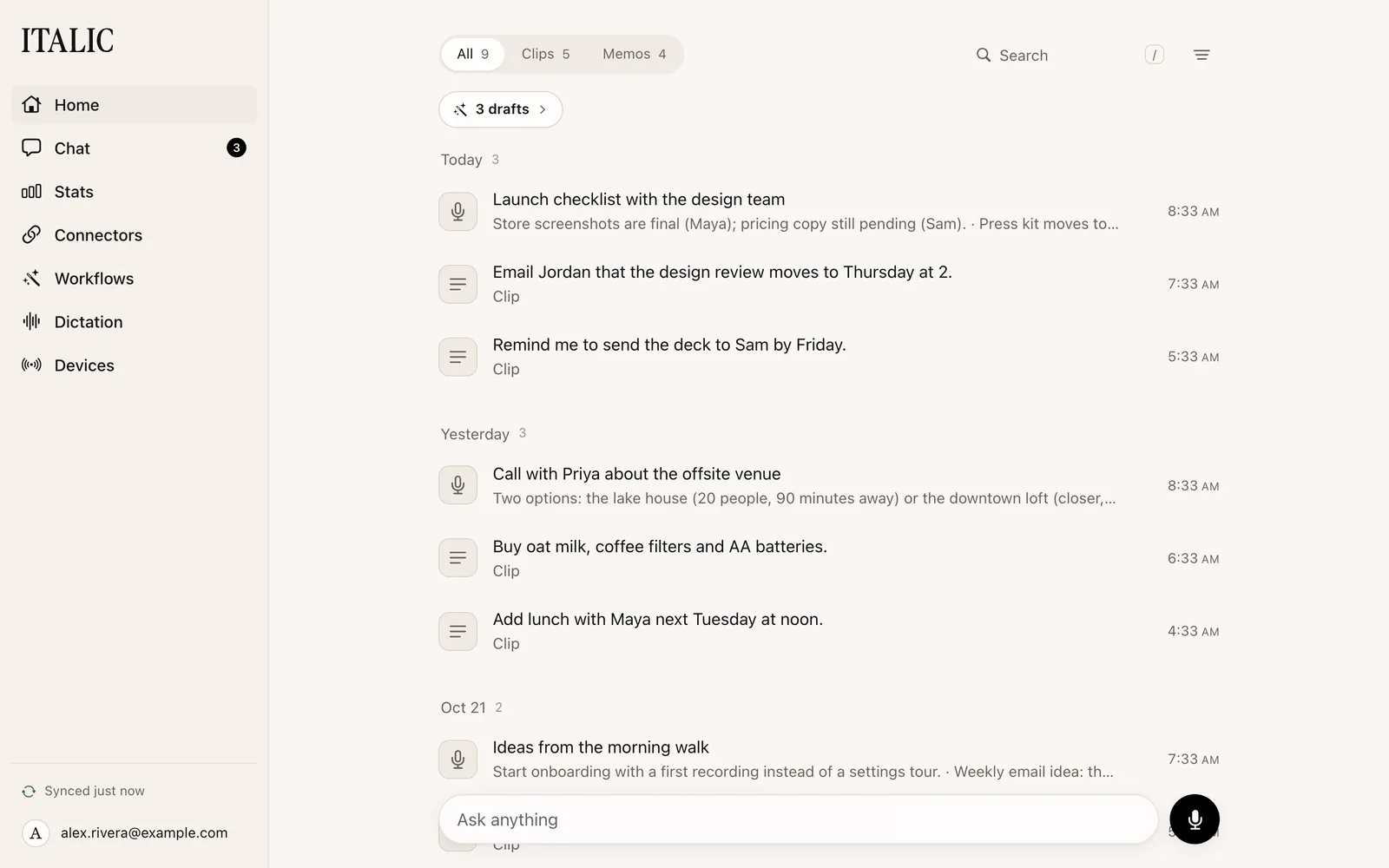
Open a recording
- A Clip opens on its text.
- A Memo opens on its title and summary, then its transcript.
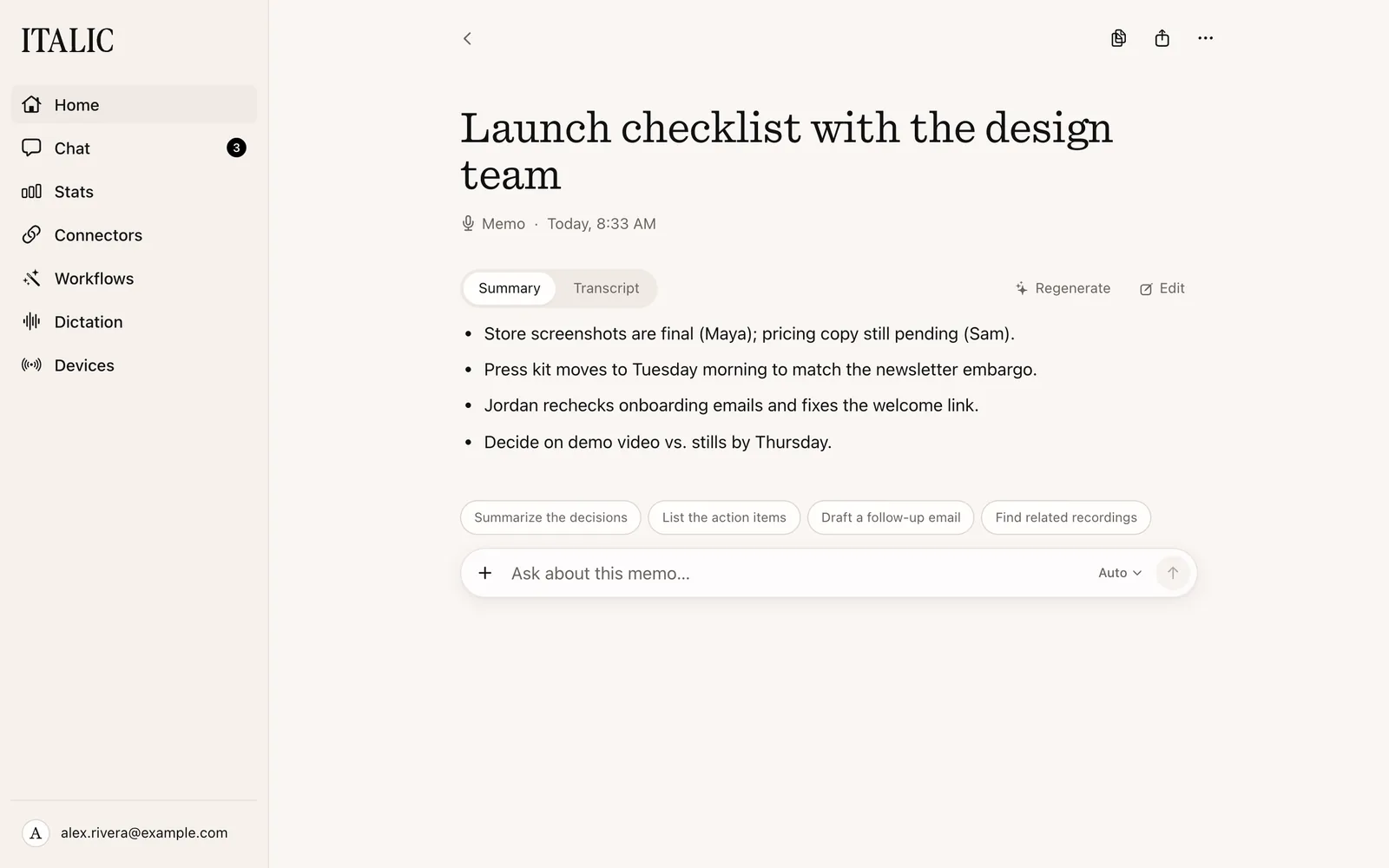
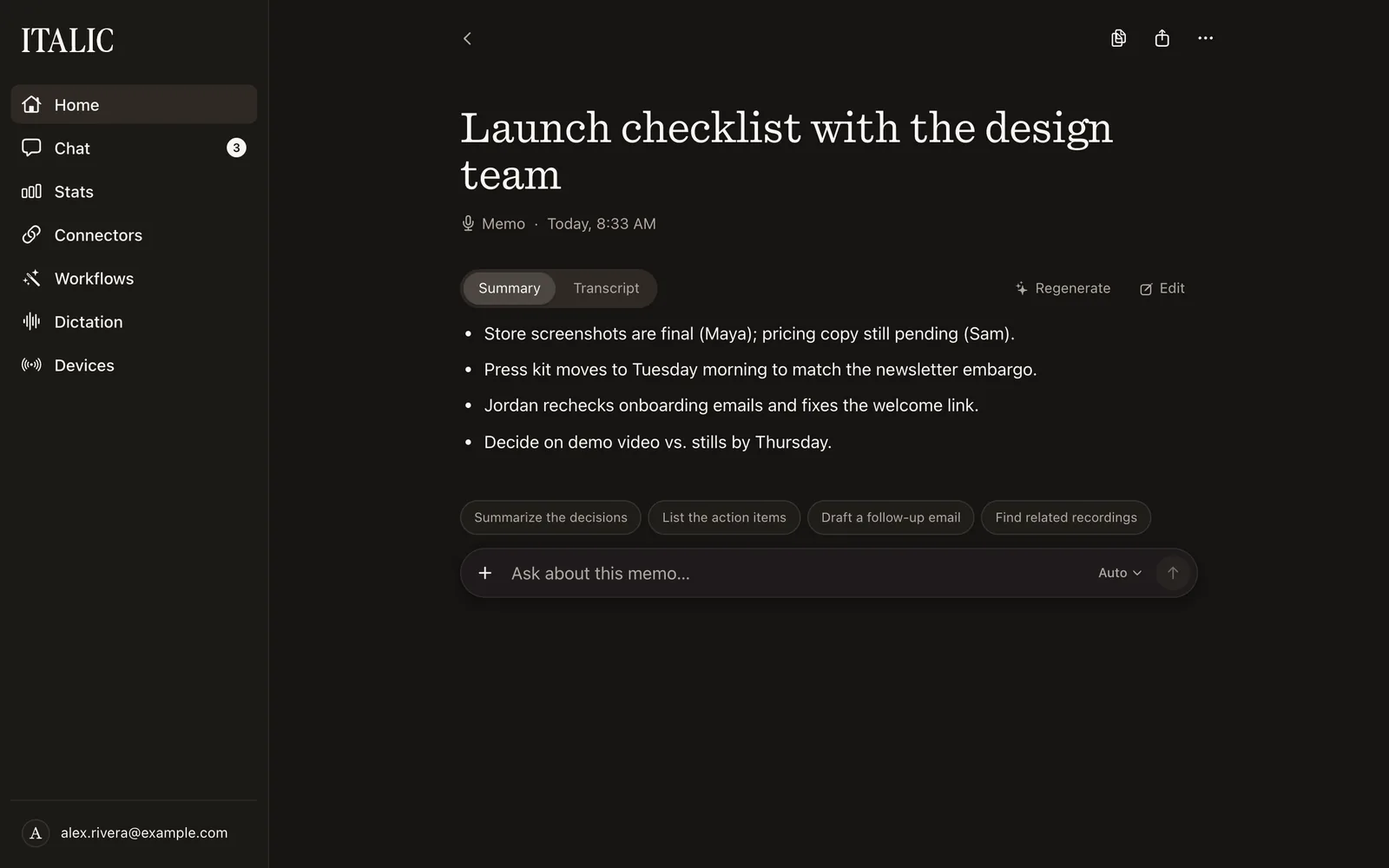
A recording's page also shows where it was recorded, if you allowed location, and its part of your chat with Italic.
Edit, copy and share
- Edit: change a Clip's text, or a Memo's title, summary or transcript, in place on its page. Tap the title or a Clip's text, or Edit on a summary or transcript. Your changes save as you type.
- Regenerate: ask Italic to write a Memo's title or summary again.
- Copy: the copy button on a row copies a Clip's text. On iPhone, swipe a row to the right to copy it.
- Send or share: open a recording in ChatGPT, Claude, Perplexity, Grok or Cursor, or share it with another app. On the web, the Share menu can also download a recording as Markdown, or a Memo's transcript as a text file.
- Change its kind: a Memo can become a Clip, but a Clip can't become a Memo. On iPhone, choose Convert to Clip from a Memo's menu. On the web, choose Move to Clips from the ⋯ menu on a Memo's page. Its text stays. Italic asks first, because it deletes the Memo's audio everywhere it's kept, including its copy in Files, and that can't be undone.
Audio
Only a recording's text syncs. A Clip keeps only its text: its audio is deleted once the text is saved. A Memo's audio stays where it was recorded. On iPhone, a Memo's page has an Audio card where you can play it, Export audio or Delete audio. Deleting the audio removes all of the Memo's audio from Italic on that iPhone and keeps its text on all your devices. A Memo recorded in the browser or on a Mac can be played there, with the same Export audio and Delete audio. For how long each one keeps audio, see iPhone and Record.
Delete a recording
On iPhone, swipe a row to the left and tap Delete, or choose Delete Clip or Delete Memo on its page. On the web, choose Delete clip or Delete memo from a row's ⋯ menu. Deleting removes the recording from your account on every device, and it can't be undone.
Home on every device
Home follows your account to the Italic app on iPhone, the web app and Italic for Mac. A recording, an edit or a deletion on one shows on the others.
- iPhone: syncs when you open Italic, about every minute while it's open, and when you pull down on Home. Profile → Personalization → Cloud Sync has Sync now and the Sync to your account switch that turns syncing on or off (on by default). With it off, your recordings and chats stay on that iPhone until you turn it back on.
- Web: shows changes as they arrive.
- Mac: the menu bar lists your 20 newest recordings, and they stay readable on your Mac when you're offline.
If you edit the same recording on two devices while one is offline, your iPhone keeps both versions and asks you to choose. Look for Review Unsynced Changes in Profile → Personalization → Cloud Sync; the Profile tab also lists it under Needs attention.
On the web and in the Mac window, an edit or delete you make while Italic can't be reached is saved in that browser or on that Mac, and syncs when you're back online, including after you reload or close the page. Home says what's waiting. If the recording changed elsewhere in the meantime, Review changes shows both versions and asks you to choose. A deleted recording's audio stays until your account has taken the delete. Signing out warns you first, because it removes changes that haven't synced.
You can also read your recordings in ChatGPT, Claude and other assistants.
Search
Search looks through your recordings' titles, summaries and transcripts. It allows for small typos, so you can find a recording in seconds without remembering exactly what you said.
Search Home
- iPhone: tap the search button (Search) at the top right of Home.
- Web: choose Search in the sidebar, or press ⌘K (Ctrl+K on Windows and Linux).
- Mac: the Italic window has the web's search, including ⌘K. While your Mac is offline, the window still searches the recordings saved on it.
The same search gives the same recordings on your iPhone and on the web.
How results are ordered
Results come best match first:
- Recordings whose title matches.
- Recordings that contain your words as a phrase.
- Recordings that contain each of your words.
Below them, Close matches lists recordings that match with a typo or inside a longer word.
What search finds
- Typos: "calender" finds "calendar".
- Words inside words: "board" finds "keyboard", under Close matches.
- Spacing: "roadtrip" finds "road trip".
Search won't stretch a short word into a different one: "car" doesn't find "calendar".
Search with filters
Search keeps the filter you chose on Home, such as Memos only, a date range or one device, and has its own filter button to change them. Filters narrow your recordings; the chat, tasks and settings are still searched. If nothing matches, Search all recordings clears them. On the web, if the filter hides results on Home, Italic says how many recordings match outside it and offers to show them all.
Search from an assistant
ChatGPT, Claude and other assistants connected to Italic search the same way. Ask "What did I say about the Lisbon trip?" See AI assistants.
Stats
Stats shows how your dictation adds up: the time you saved by speaking instead of typing, your words, your speed and how many days in a row you've recorded.
Open Stats
- iPhone: the Profile tab shows this week's words and time saved under your name. Tap your name to open your Profile, which has the full Stats. The line shows once something has been counted, and Stats needs you to be signed in with Cloud Sync on.
- Web: choose your name in the sidebar to open Profile (on a phone, use the account menu). Stats is on that page.
- Mac: once you've dictated today, the menu bar shows a line such as "Today: 1,240 words · 23 min saved". Click it to open Stats on your Profile in the window.
Every app shows the same numbers for the same range.
What each number means
Choose Today, This week, This month or All time.
- Time saved: how long typing your words would have taken, at 40 words a minute, minus the time to say them, at 150 words a minute. If Italic measured you speaking faster than that, it uses your speed. Pauses and silence in a recording never count against you.
- Words: what you dictated in the range.
- Words per minute: your speaking speed, from your recent recordings of up to about seven minutes. It reads "—" until Italic has timed 30 seconds of your speech.
- Current streak: days in a row with a recording, up to today. Until you record today, it counts up to yesterday. Under All time, Stats also shows your Longest streak.
- Activity: a calendar of the past year. Each square is a day, darker the more you dictated.
- Where it comes from: your words and time saved by type (Clips and Memos) and by device, under each device's name. Words from a device Italic can't name count in the totals and are noted under the list.
What counts
- Every Clip and Memo you record counts once, when its transcript first has words. Editing it, transcribing it again or cleaning it up later doesn't change its count.
- A recording you delete still counts.
- Text an assistant or another app saves to Italic doesn't count, and neither do meetings imported from Granola.
Share your stats
Choose Share on your Profile (Share Stats on iPhone) to make an image of your stats. Sharing needs a username for your public profile link, and Italic asks you to choose one if you don't have one yet. On the web, it uses your browser's share sheet where it has one, and otherwise downloads the image.
Privacy
Stats keep counts and times, never your words. If you choose a username, your name, photo and aggregate stats are public at app.italic.com/@username; your email and recordings stay private. Clear your username to remove your public page. Deleting your account deletes your stats.