AI assistants
Use your Clips and Memos from ChatGPT, Claude and other AI assistants that support MCP.
Ask about your recordings where you already work. ChatGPT, Claude, Cursor and other AI assistants can search your Clips and Memos and answer from their text, save notes from the conversation, and review what your workflows drafted. Italic shares text, never audio, and an assistant reaches only the Italic account you connect.
Connect an assistant
Pick the assistant
In Connectors, under Agents, choose your assistant. Italic lists ChatGPT (with Codex), Claude (with Claude Code), Cursor, VS Code, Perplexity, Copilot CLI, Notion AI, Raycast, Zed, Warp, Manus and goose.
Add Italic there
Follow the assistant's page: it has a Connect button, an install link or a command to copy, and says which of the assistant's plans can add Italic.
Sign in and choose permissions
Italic's connection page opens. Sign in, check what the assistant may do, and choose Allow selected permissions.
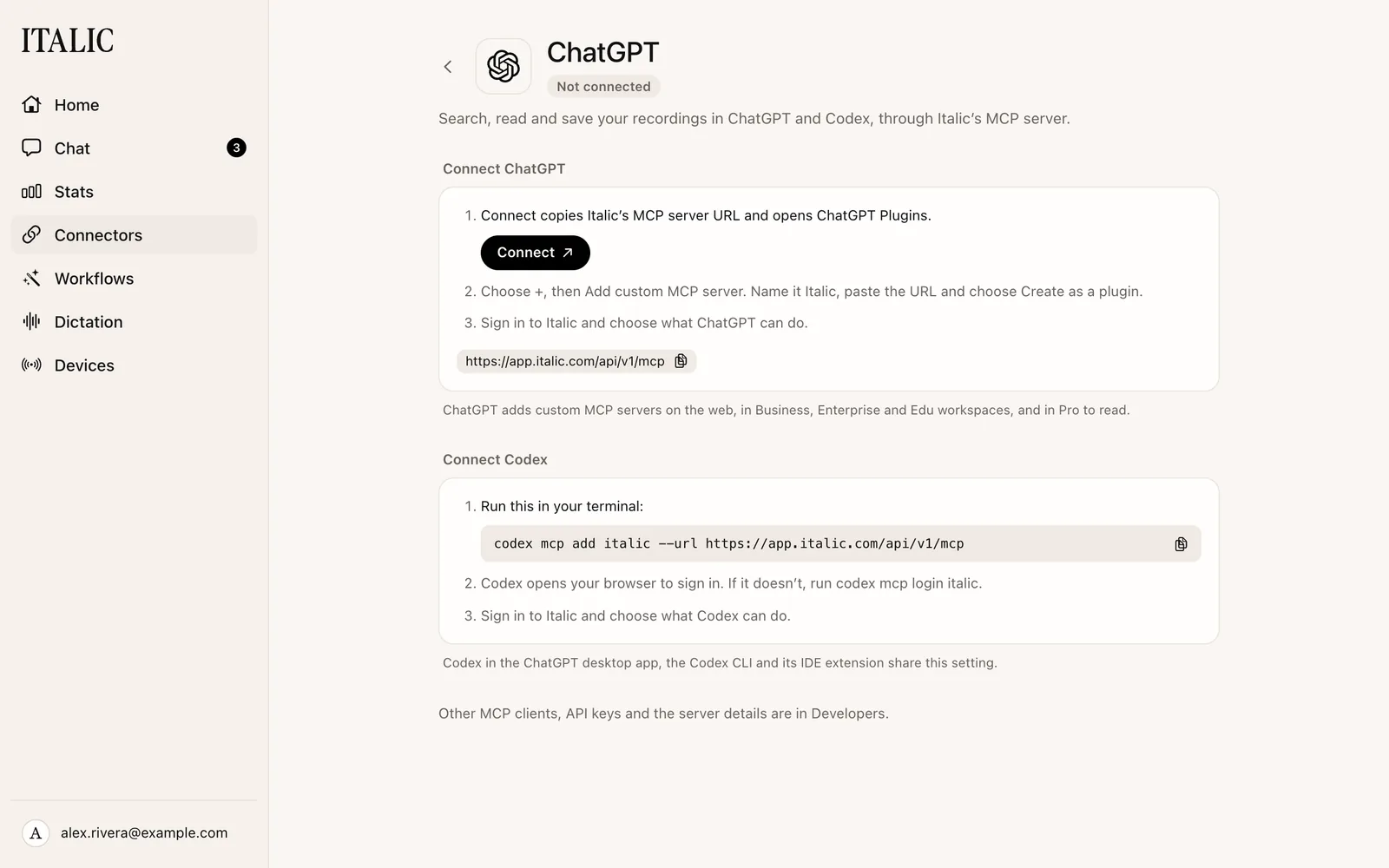
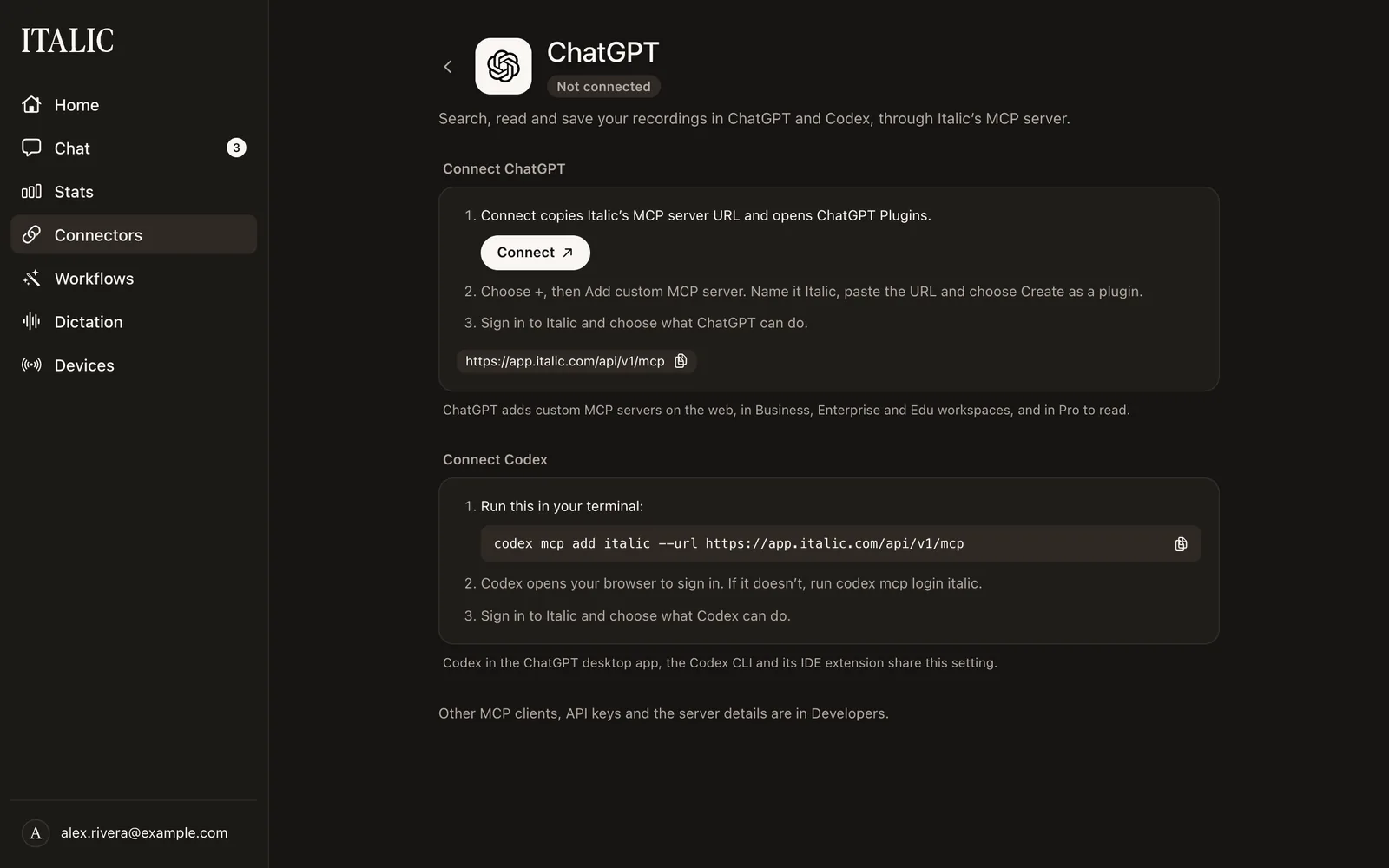
Any other assistant that supports remote MCP servers can connect with Italic's server address:
https://app.italic.com/api/v1/mcpFor step-by-step setup, see Italic in Claude and Italic MCP.
What you can ask
- "What did I say about the Lisbon trip?"
- "What's my latest Italic Clip?"
- "Recap my Italic notes from this week."
- "Save these meeting notes to Italic."
- "Rename my book club memo to October book club."
- "What drafts are waiting in Italic?"
In ChatGPT, Italic can also show your recordings, a recording, Devices, Settings, Workflows or Connectors inside the chat. Approving a workflow draft from an assistant sends it through the account it was drafted for, such as your Gmail.
Permissions
On Italic's connection page you choose what the assistant may do. Untick anything you don't want to allow:
- Read and search recording text, and read recording events.
- Create recordings, edit recording text and delete recordings.
- See or edit your profile and email, saved devices and preferences.
- See your workflows and connected app accounts, and turn workflows on or off.
- Approve or discard what your workflows drafted.
The page also asks to confirm which Italic account you use, see your email address and stay connected. To change permissions later, disconnect and connect again.
Disconnect
In Connectors → Agents, choose the assistant, then Disconnect beside its connection. For an assistant that isn't listed there, open Security (on your iPhone, in Profile) and choose Revoke access under Connected applications. Disconnecting takes effect at once. You can also remove Italic in the assistant's own settings.