Web
The web app at app.italic.com has Home, Chat, workflows and settings, and records Clips and Memos in your browser.
The web app at app.italic.com works in any modern browser, on any computer. Sign in with the same account you use on your iPhone (see Account) and Home is there.
Find your way around
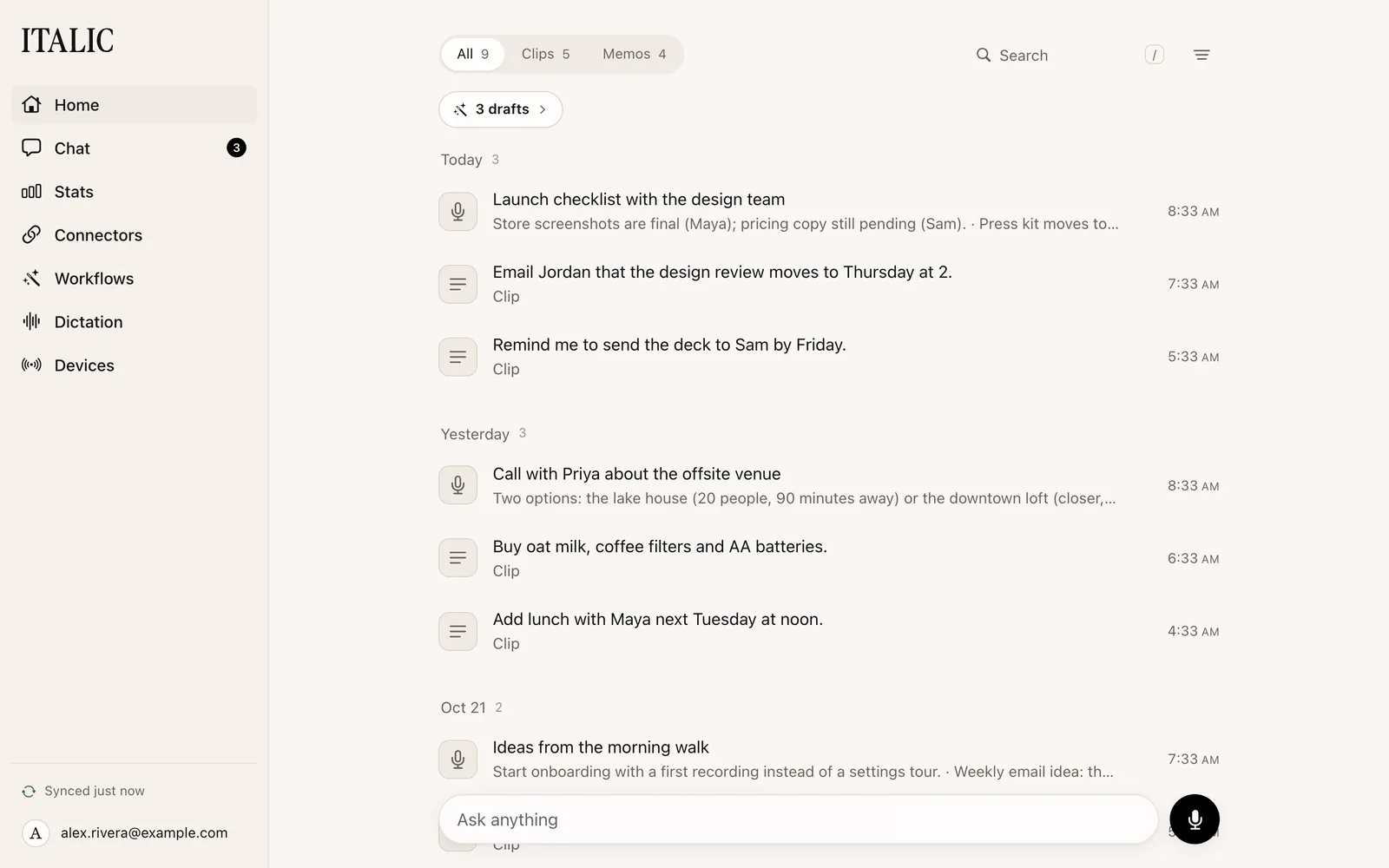
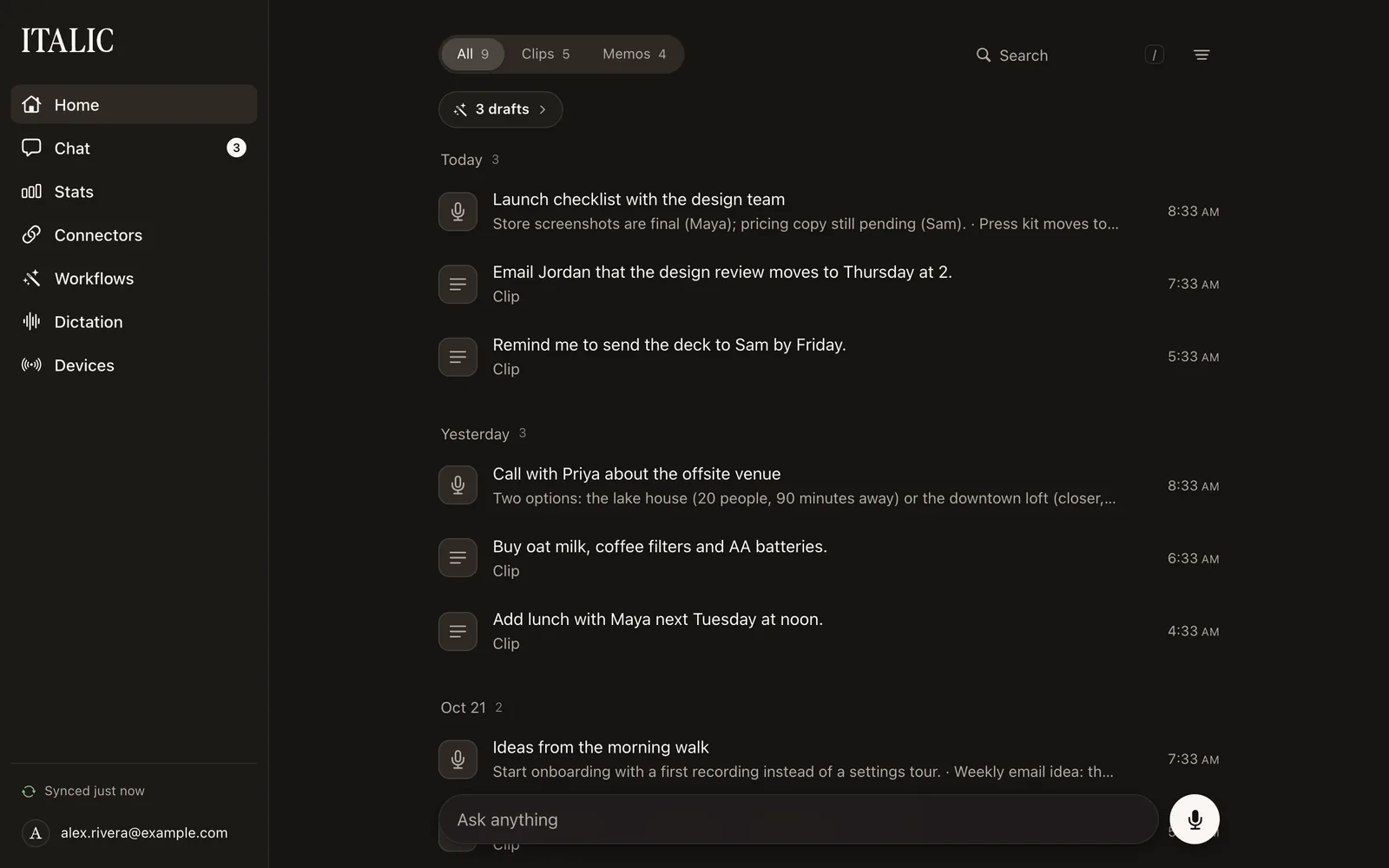
On a computer, the sidebar has everything:
- Home: your recordings. The bar at the bottom asks Chat a question (type it, or tap the mic and speak it), and Record above its right end records a Memo.
- Search: opens search from any page. Press ⌘K on a Mac, or Ctrl+K elsewhere.
- Chat: your conversation with Italic.
- Tasks: the drafts and questions waiting for you. A number beside it says how many are waiting.
- Connectors: the apps Italic can use, and the assistants you connect Italic to.
- Workflows: automations that act on your recordings.
- Dictation: Vocabulary and Clean Up, and your transcription language.
- Devices: the devices saved to your account.
Below them are the sync status and your account. Choose your name to open Profile, which has your stats. Security, Personalization, Notifications, Developers and Downloads are listed under it while you're there. Notifications holds your Daily recap email and reminder. Sign out is in Security, under Sessions.
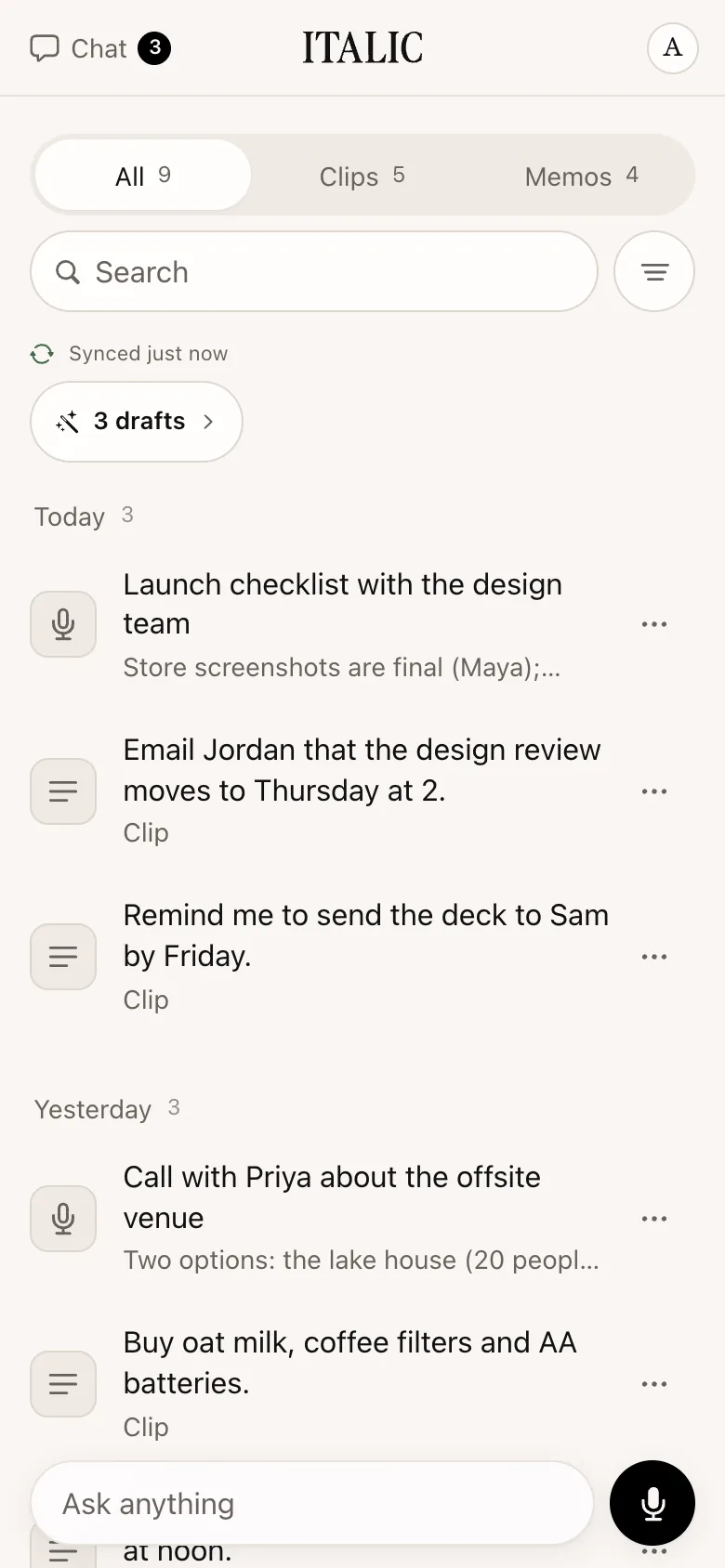
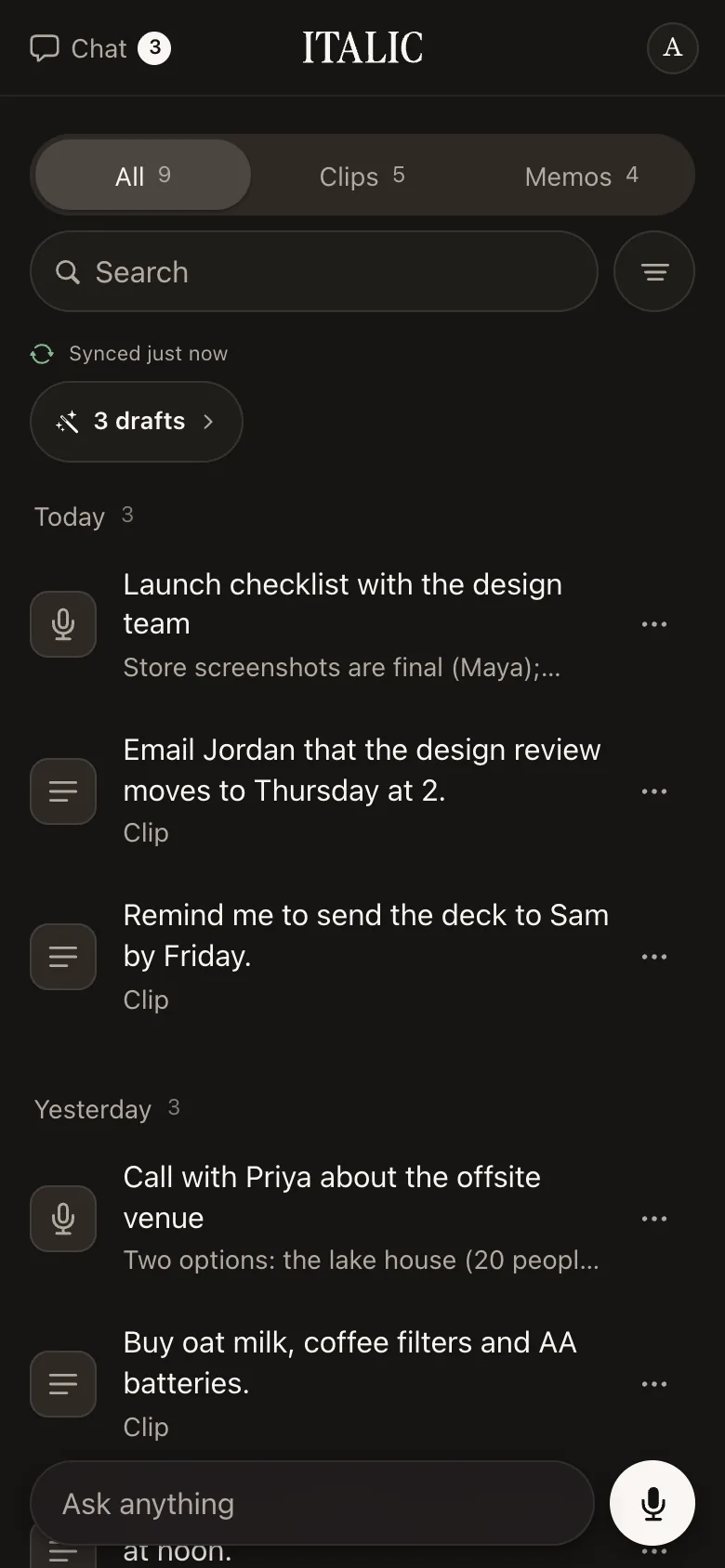
On a phone's browser, the sidebar becomes a slim bar with Chat, the Italic wordmark (which goes Home) and your photo. Tasks is in Chat's bar. Your photo's menu holds Profile, Security, Personalization, Notifications, Developers, Downloads, every other section and Sign out.
Record in your browser
Choose Record, the waveform button above the bar on Home, to record, and save it as a Clip or a Memo when you finish. You can pause and resume. A recording can be up to 15 minutes. A Memo's audio is kept only in that browser, for as long as Keep recordings under Dictation says, and a Clip's is deleted once its words are saved. A recording that didn't finish waits on Home until you retry or delete it. See Record.
Devices on the web
The Devices page lists every Sudo, Dex and Glyph saved to your account, and each device's page shows what it has recorded. You can rename a device, or remove it with ⋯ → Remove from account…. Its recordings stay on Home.
Pairing a device and checking its battery happen in the Italic app on iPhone, which connects to it over Bluetooth. Sudo's gestures and firmware are there too. Glyph updates from the iPhone app over its hotspot (Glyph 1.0.56 or later) or by USB cable through Italic for Mac, and its gestures are set on Glyph. A FoloToy Passport's firmware installs from a computer, in Chrome or Edge, and the installer isn't released yet. A device's page says which applies. A device on one of your iPhones also shows that iPhone, with a phone icon, in its row on Devices and under its name on its page, such as "On iPhone Duo · 1 min ago".
Get the other apps
Downloads, under your name, has the Italic app for iPhone and Italic for Mac. In a Mac browser, the sidebar also shows an Italic for Mac card until a Mac is signed in to your account.
What needs your iPhone
The web app has Home, Chat, workflows and connectors, but some things happen only in the Italic app on iPhone:
- Recording for more than 15 minutes, and seeing your words live as you record.
- Connecting and setting up Sudo, Dex and Glyph.
- Adding Apple Reminders. You can approve a reminder draft on the web, and Italic wakes your iPhone to add it, without Italic being opened.
- Notifications and Live Activities.
- Clean Up for Clips, and anything that runs on Apple Intelligence.