Mac
Italic for Mac puts each new Clip on your clipboard, can paste it where you're typing, and lets you approve tasks from the menu bar.
Italic for Mac is the web app in a Mac window, with a menu bar icon. Say something into your Sudo or iPhone, and seconds later it's on your Mac's clipboard, ready to paste. It needs macOS 14 or later.
Download and install
Download
In the web app, choose your name at the bottom of the sidebar, then Downloads, then Download beside Italic for Mac. In a Mac browser, the sidebar's Italic for Mac card has the same download.
Install
Open the disk image and open Italic. It offers to move itself to your Applications folder.
Sign in
In the welcome guide, choose Continue in Browser (or Sign In with Browser in the menu bar). Your browser opens Italic's sign-in page; nothing you type there passes through the app. When you're done, the guide goes on by itself.
The welcome guide then sets up copying, notifications, opening at login and auto paste.
Italic for Mac's own settings are at the end of Personalization: choose Settings… in the menu bar. They're in the sections Clips on this Mac, This Mac and Updates. Show the Welcome Guide is under This Mac. Banners for new Clips and Memos and for workflow drafts are on Notifications, above your Daily recap.
Updates
Italic for Mac updates itself. A new version installs the next time Italic quits, and it opens still signed in. Under Updates, you can turn off Install updates automatically or choose Check for Updates….
New Clips on your clipboard
With Copy new Clips automatically on, each new Clip from any of your devices goes on your clipboard as it syncs, and the menu lists it at the top.
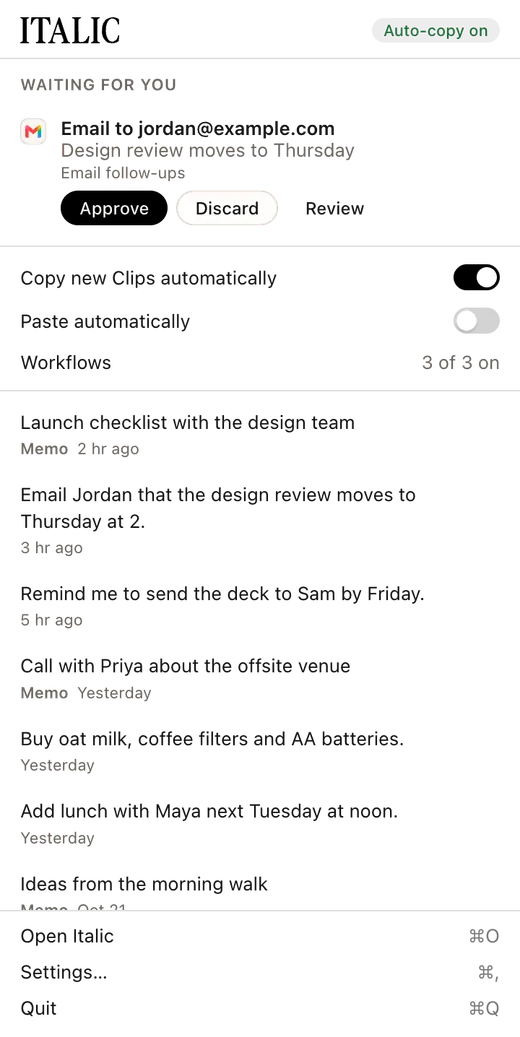
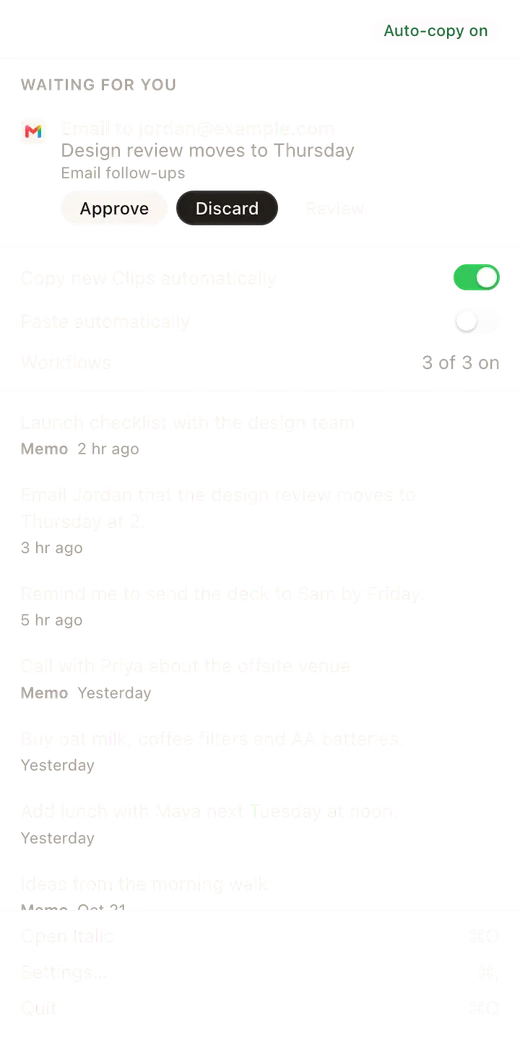
- Only fresh Clips are copied: recorded in the last 15 minutes by default, or choose 5 minutes or Hour under Clips on this Mac. Older ones, such as a Clip your phone synced late, are listed but not copied.
- A Clip that arrives while your Mac is locked is copied when you unlock it, if it's still fresh.
- Memos are listed but never copied. Click any recording in the menu to copy it, or right-click it to open it in ChatGPT, Claude, Perplexity, Grok or Cursor.
Paste where you're typing
Turn on Paste automatically and a new Clip is also pasted into the text field you're in. macOS asks you to allow Italic under Accessibility first; Italic walks you through it. It never pastes into a password field or into Italic itself.
Banners
Italic posts a banner for each new Clip or Memo, such as "New clip from your Sudo", with what you said. It also says whether the Clip was copied or pasted. Click it to open the recording. To turn these off, turn off New Clips and Memos under Notifications. Workflow drafts waiting for you, beside it, does the same for a draft's banner; the draft stays in the menu.
Approve from the menu bar
When a workflow drafts something, it waits for you under Waiting for you in the menu, with Approve, Discard and Review. Review opens it in the window. Each new draft also posts a banner with Approve and Discard.
- An email with no recipient yet opens for review instead, so you can add one. Its banner offers only Discard.
- A reminder you approve is added by your iPhone.
- A decision on your Mac is the same decision on every device. See Tasks.
The window
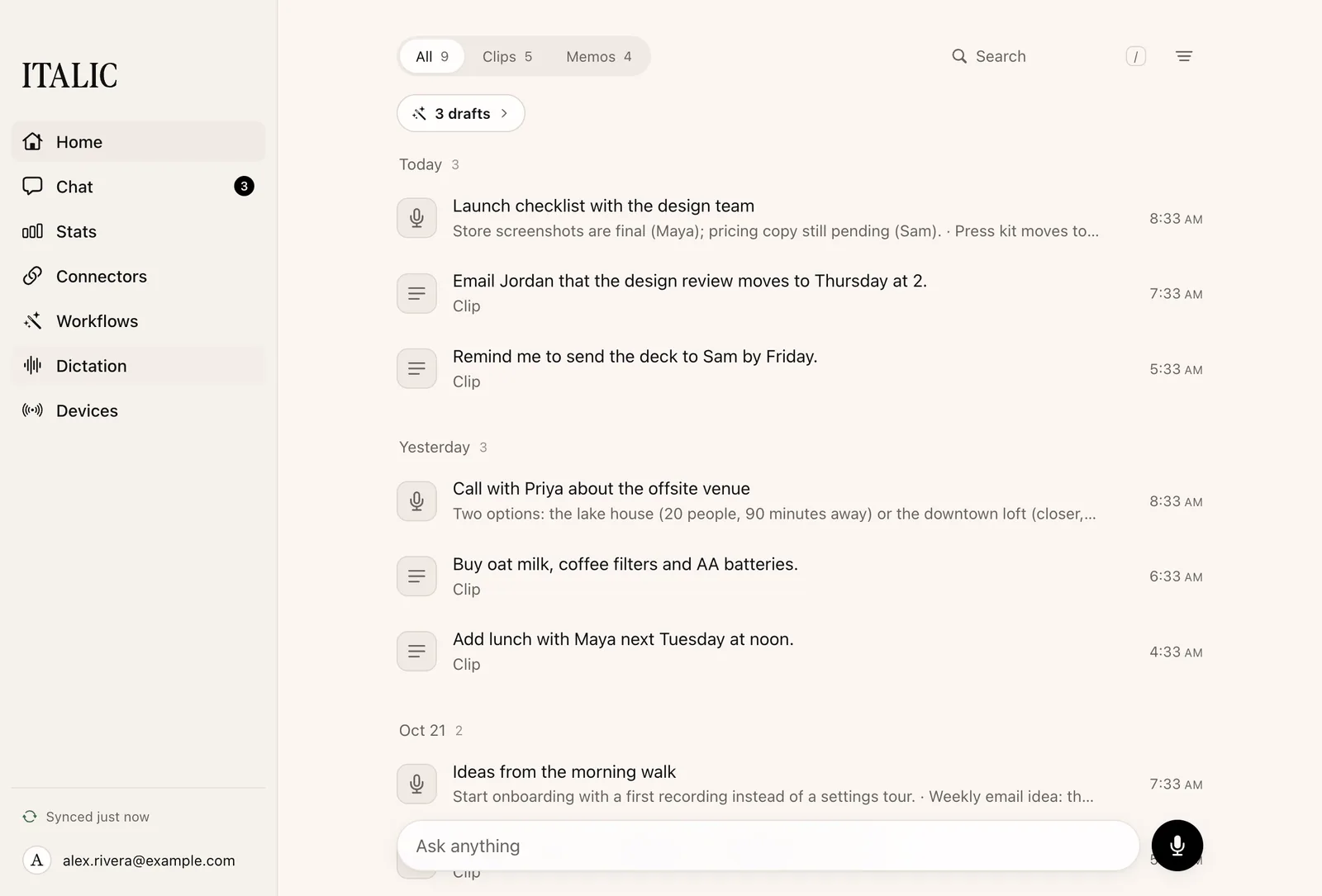
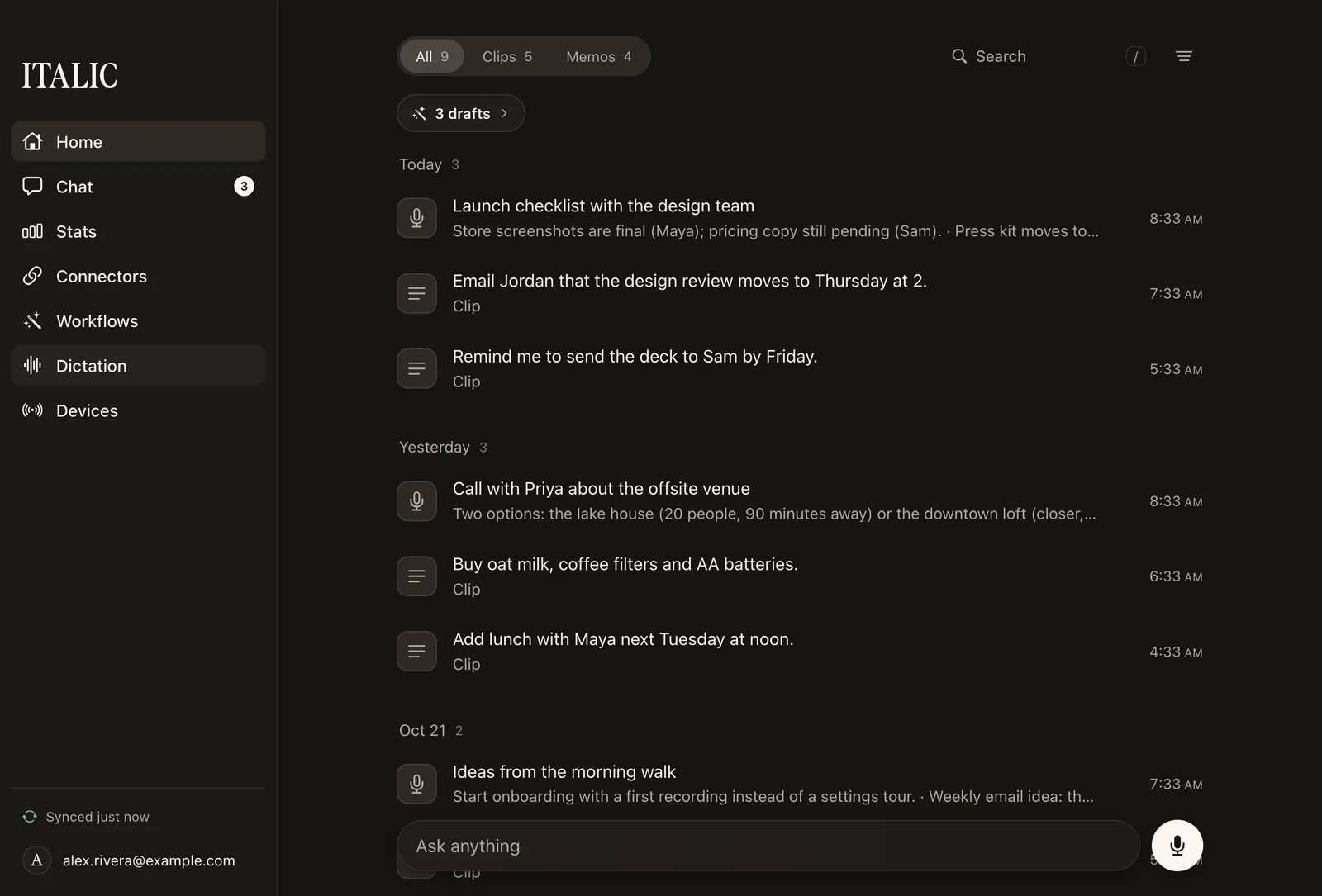
Open Italic in the menu opens the window: Home, Search, Chat, Tasks, Connectors, Workflows, Dictation and Devices, as in the web app. While Italic can't be reached, the window shows the recordings saved on your Mac, and you can search them.
More shortcuts
- Copy Latest Clip is in Shortcuts and Spotlight on your Mac too.
- Open Italic at login and Show Italic in the Dock are under This Mac in Personalization.
- Signing out in the Italic window signs Italic for Mac out. Signing out in your browser doesn't.