Tasks
Approvals
Approve or discard tasks from the Mac menu bar or from your iPhone.
Approve from the Mac menu bar
Italic for Mac puts your workflow drafts in the menu bar, so you can approve without opening a window.
- Open the Italic menu. Waiting for you lists each draft with a button named for what it does (Approve for an email, event or reminder; Save to Notion or Add to Page for Notion), Discard and Review. Review opens the recording in the Italic window.
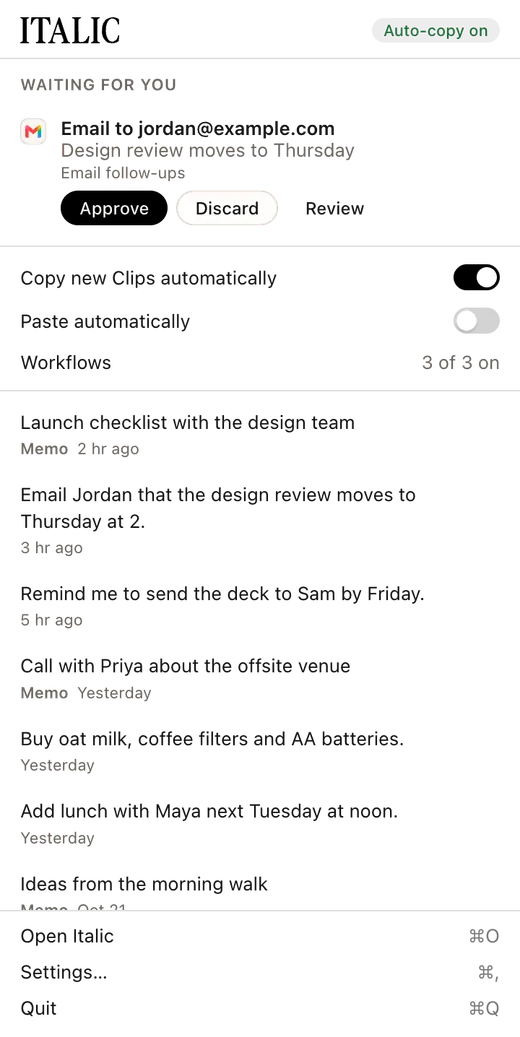
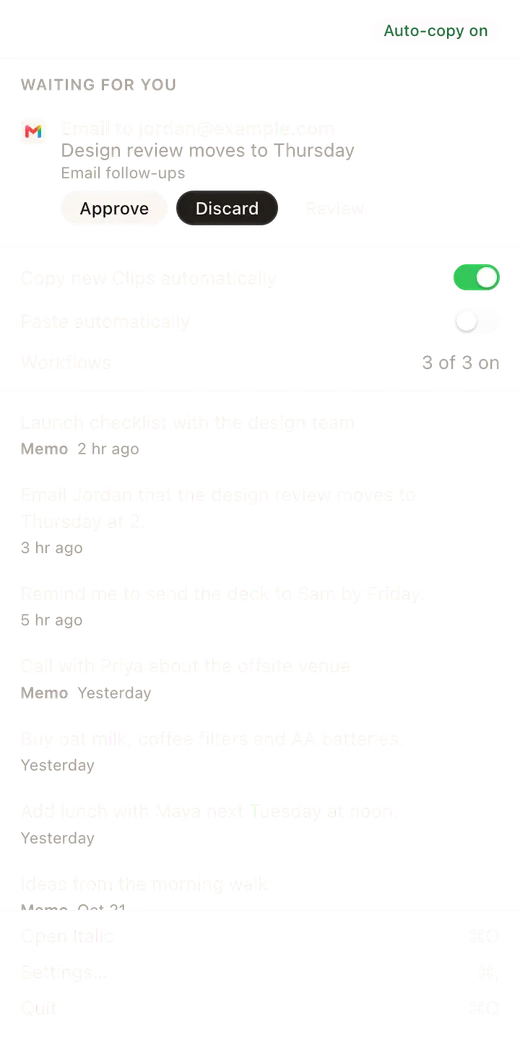
- Each new draft also posts a banner with Approve and Discard.
- An email with no recipient reads "Email with no recipient yet", with Add recipient and Discard instead of Approve. Its banner has Discard only.
- If an approval is refused, the menu says "This draft needs changes before it can be approved. Review it on the web."
When more drafts wait than the menu shows, choose the "more in Tasks" line to open the Italic window, then choose Tasks in the sidebar for the rest.
Approve from your iPhone
Your iPhone can notify you of each workflow draft, and follow a run on the Lock Screen. Approve asks for Face ID first. See Notifications on iPhone in Workflows.